In Part 1 of this series, we explored Obot’s architecture and core components. Now we move from theory to practice: This guide provides step-by-step instructions for deploying Obot with Docker, connecting to an existing MCP Server from the registry, and successfully querying the MCP Server.
Managing MCP servers in Obot starts with understanding the four server types the platform supports, each designed for specific deployment scenarios. We will walk through deploying Obot, adding your first MCP server, configuring runtime environments, and setting up registries for access control.
This tutorial is part of The Obot MCP Gateway Enterprise Deployment & Security Series: From Architecture to Secure Production. Check out the other parts below:
Let’s get hands-on. In this section, we will deploy Obot using Docker and walk through some of the main functionality of the Obot Gateway. NOTE: Docker platform would be a great option for individual developers or for quick evaluation of the Obot MCP Gateway. For production use cases, Kubernetes is the recommended platform.
Step 1: Deploy Obot with Docker
First, ensure Docker is installed and running on your machine. Then execute the following command to start Obot:
You will see the Obot interface with access to both the Chat Interface and the Admin panel. Out of the box, Obot includes a curated catalog of popular MCP servers such as GitHub, Slack, Outlook, Notion, and many others.
Step 3: Connect to DuckDuckGo MCP Server
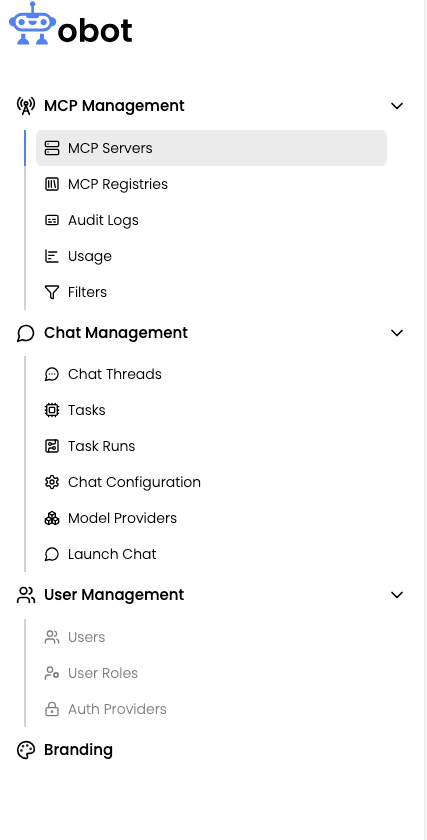
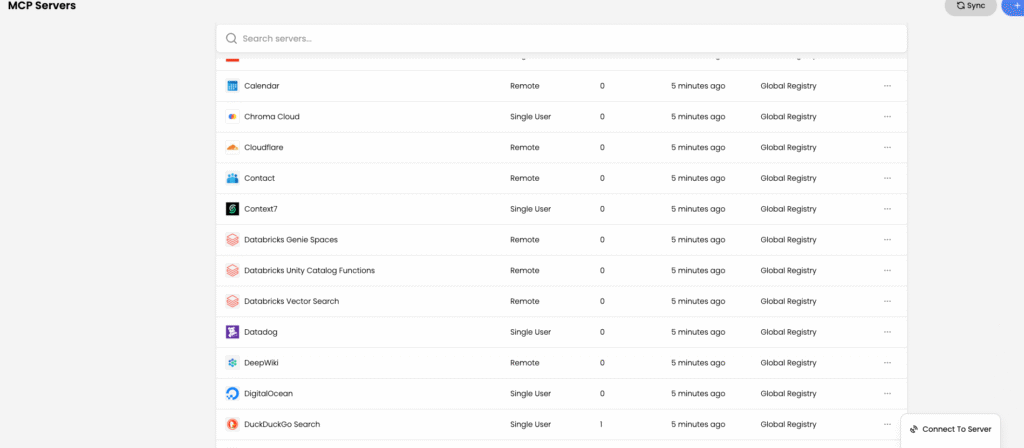
On the Obot UI, select MCP Servers from the left sidebar
Select the DuckDuckGo MCP Server and click on the “…” menu
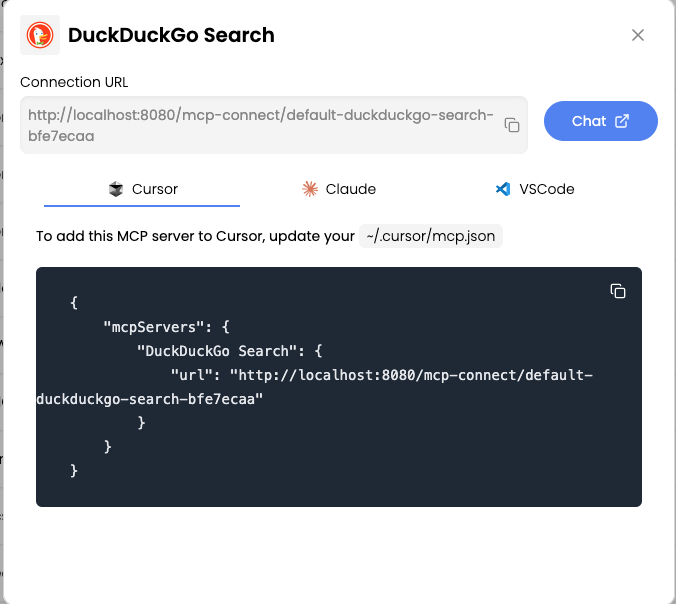
Click on Connect to Server
Click on the Chat button
Step 4: Use the DuckDuckGo MCP Server
The Chat Interface will appear
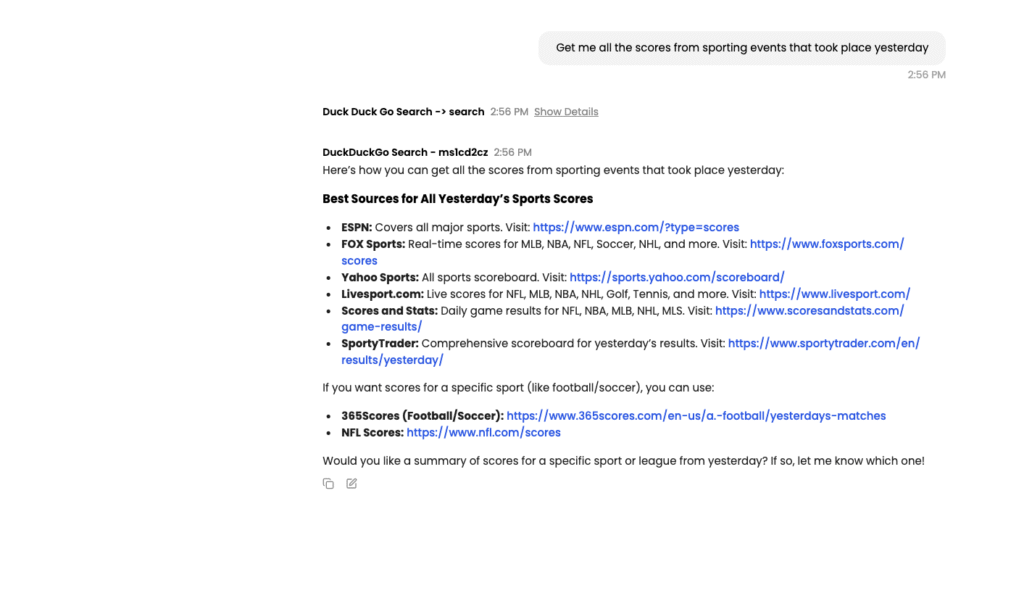
Enter the following query in the Chat window: “Get me all the scores from all the sporting events that took place yesterday”
The Obot Gateway is successfully communicating with the DuckDuckGo MCP server and the results of the query are displayed in the Chat interface.
Step 5: Add a GitHub MCP Server
Let’s add the GitHub MCP server to enable AI interactions with GitHub repositories, issues, and pull requests. We will add this as a Remote MCP server type and specify the required parameters to access the Remote MCP Server.
NOTE: We will be adding the GitHub Server manually even though there is an existing GitHub MCP Server in the catalog. This is for demonstration purposes to highlight the steps involved in adding a new MCP Server.
Navigate to Admin > MCP Servers in the sidebar
Click Add MCP Server
Select Remote MCP as the server type
Click on Advanced Configuration
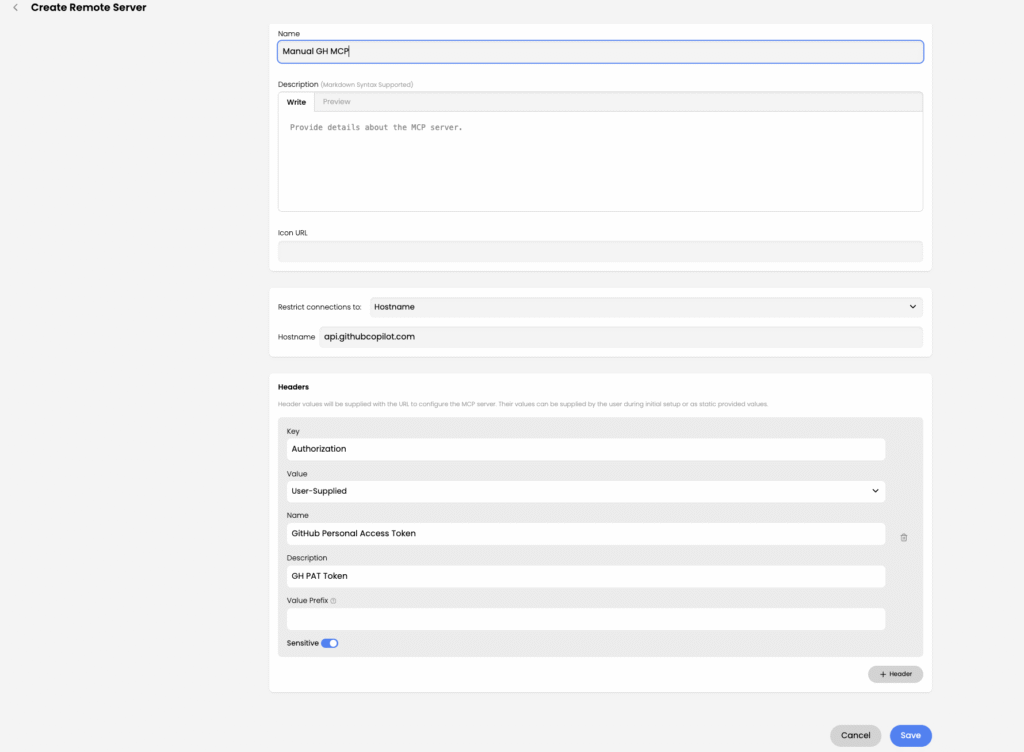
Fill in the Remote server details:
Name: Manual GH MCP
Description: Access GitHub repositories, issues, and pull requests
Restrict Connections to: Hostname (dropdown entry)
Hostname: api.githubcopilot.com
Add a Header parameter for authentication:
Key: Authorization
Value: User-Supplied
Name: GitHub Personal Access Token
Description: GitHub PAT Token
Sensitive: Yes
Click Save to add the server to your catalog
Step 6: Connect and Test
Now let’s test the Manual GitHub MCP server:
Go to Chat in the main navigation
Click the + button next to MCP Servers in the sidebar
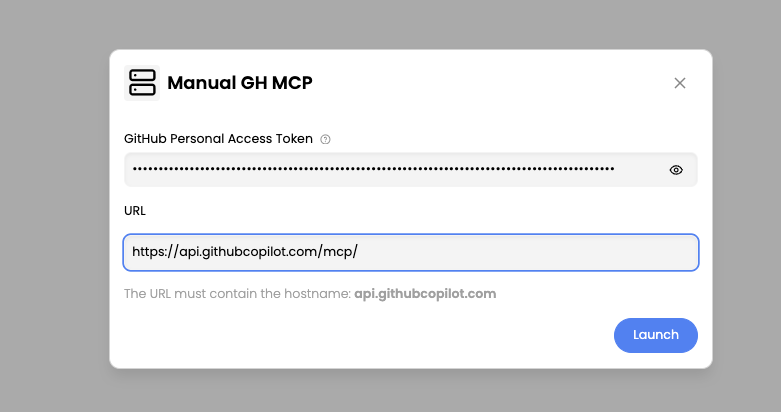
Select Manual GitHub MCP from the catalog
Enter your GitHub Personal Access Token and for the URL enter https://api.githubcopilot.com/mcp
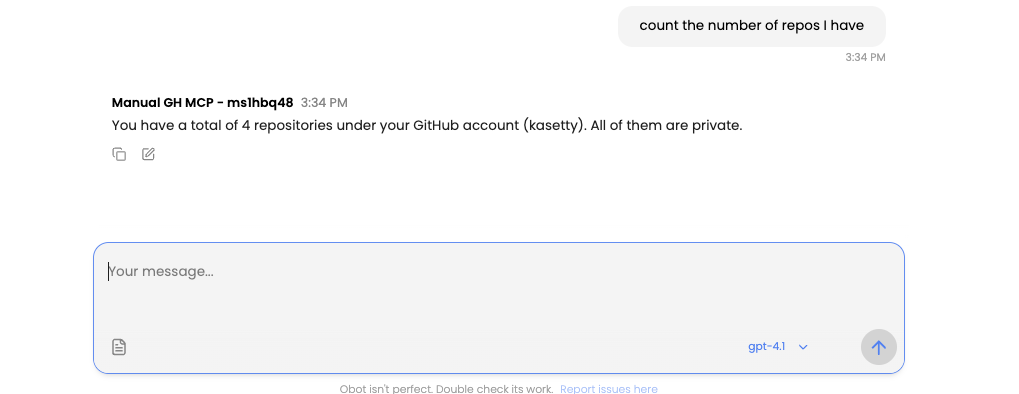
Once connected, try a prompt like: “Count the number of repos I have”. Obot should communicate with the GitHub MCP Server and provide you with the count of all your repos.
Understanding MCP Server Types
Before adding more servers, let’s look into the various MCP Server types that are supported by Obot. Obot supports four distinct server types, each optimized for specific deployment patterns.
Server Type
Description
Best For
Single-User
One server instance per user; each user provides their own credentials
Personal accounts (GitHub tokens), maximum isolation, stdio servers
Multi-User
Shared instance with centralized credentials or self-authenticating OAuth
Shared API keys, HTTP streaming servers, vendor-provided servers
Remote
External server deployed outside Obot; gateway proxies requests
For servers that Obot will host (single-user and multi-user types), you need to configure the runtime environment. Obot supports Node.js, Python, and container-based runtimes.
Node.js and Python Servers
For TypeScript or Python MCP servers, provide the package name and entry command. Obot handles dependency installation and process management automatically.
Container-Based Servers
For non-TypeScript or Python servers, or when you need complete control over the runtime environment, use container deployment. Container based MCP Servers are the recommended option when publishing servers for the organization. Packaging as a container freezes the dependencies making it easier to know what is running in your environment.
Configure the server to run as Streaming HTTP or SSE and provide:
Image: The OCI image URI (e.g., docker.elastic.co/mcp/elasticsearch)
Port: The port the MCP server listens on inside the container
Path: The URI path (typically /mcp or /sse)
Arguments: Optional arguments to pass to the command
GitOps Workflow for MCP Server Management
For production environments, many teams prefer GitOps workflows that keep server definitions and policies in version control. This approach enables configuration drift detection, change auditing, and CI/CD integration.
Server Entry YAML Format
Obot uses YAML files to define MCP server entries. Here is an example for a remote HTTP server:
name: Weather API

description: |

  Real-time weather data and forecasts.

  ## Features

  - Current weather conditions

  - 7-day forecasts

metadata:

  categories: utilities, data

env:

  - key: API_KEY

    name: API Key

    required: true

    sensitive: true

runtime: remote

remoteConfig:

  fixedURL: https://api.weather.example/v1/mcp
Look at the mcp-catalog repository for the list of all MCP servers that come preconfigured in Obot MCP Gateway.
Try Obot today — the open-source MCP gateway. Self-hostable, MIT licensed, full audit trail at every tool call.
MCP Registries control which servers are visible to which users. Administrators use registries to map server entries to specific users and groups, ensuring each team has access only to the tools they need.
Creating a Registry
To create a new registry, navigate to MCP Management > MCP Registries and follow these steps:
Click the Add New Registry button
Give your registry a descriptive name (e.g., “Engineering Team”)
Assign users and groups to the registry
Add the MCP servers this registry should include (e.g., GitHub, Jira, Datadog)
By default, Obot includes an “everyone” group. If you need tighter controls, remove this group and assign specific teams to specific registries.
Summary
In this guide, we deployed Obot with Docker, connected to a DuckDuckGo MCP server, added a GitHub MCP server manually, and explored the platform’s server types and registry system. The key takeaways:
Obot can be deployed in minutes with a single Docker command
Adding MCP servers is straightforward through the Admin UI
Four server types address different deployment scenarios
Registries provide fine-grained access control per team
In Part 3, we will dive deep into access control, security, and proxying. We will explore how Obot’s authorization model maps identity groups to MCP servers, how the gateway proxies calls with policy enforcement, and best practices for credential management.
Once you’ve connected your first servers, you can expand into curated tool catalogs and reusable workflows. For inspiration, see our roundup of 15 MCP servers I use most right now.