To start off, MCP (Model Context Protocol) is an open standard that specifies how AI applications can securely connect to external systems and data sources. It provides a consistent interaction pattern that helps AI models produce more reliable results: You can think of MCP as sort of a universal adapter that let’s your AI model interact with APIs, file systems, databases, services, etc., in a standardized way.
However, managing multiple MCP servers introduces challenges around authentication, usage monitoring, and distribution. At an enterprise scale, MCP servers are unlikely to be adopted broadly across development teams due to the operational overhead involved. As the number of servers grows, managing this sprawl quickly becomes complex and time-consuming. This is where an MCP gateway can help, by centralizing and simplifying management.
What is an MCP Gateway?
You can think of an MCP gateway as a hub for managing, and distributing MCP servers. So instead of each members of a team configures the MCPs on their computers, a MCP gateway can provide: –Discovery: A directory where developers can browse available MCPS –Centralized management: Let’s you upload and configure MCPs in one place –Access control: Manage which members can do what –Distribution: Connect to MCPs from any IDE or application without manual setup –Monitoring: Track usage and performance across your team or organization
Obot AI serves as this gateway: It can transform how your team works with MCPs, making the workflow more managed, shareable, and easier for the members to consume.
Try Obot Today
⬇️ Download the Obot open-source gateway on GitHub and begin integrating your systems with a secure, extensible MCP foundation.
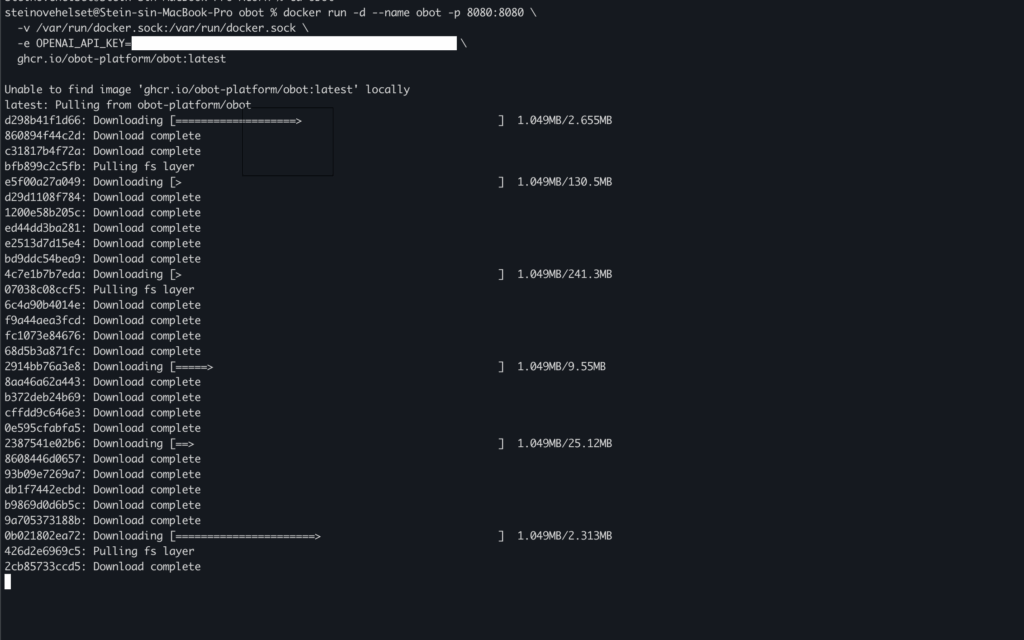
This will take a few minutes. It might take a little while downloading everything we need.
When you have Obot running, we can continue to set up an MCP server.
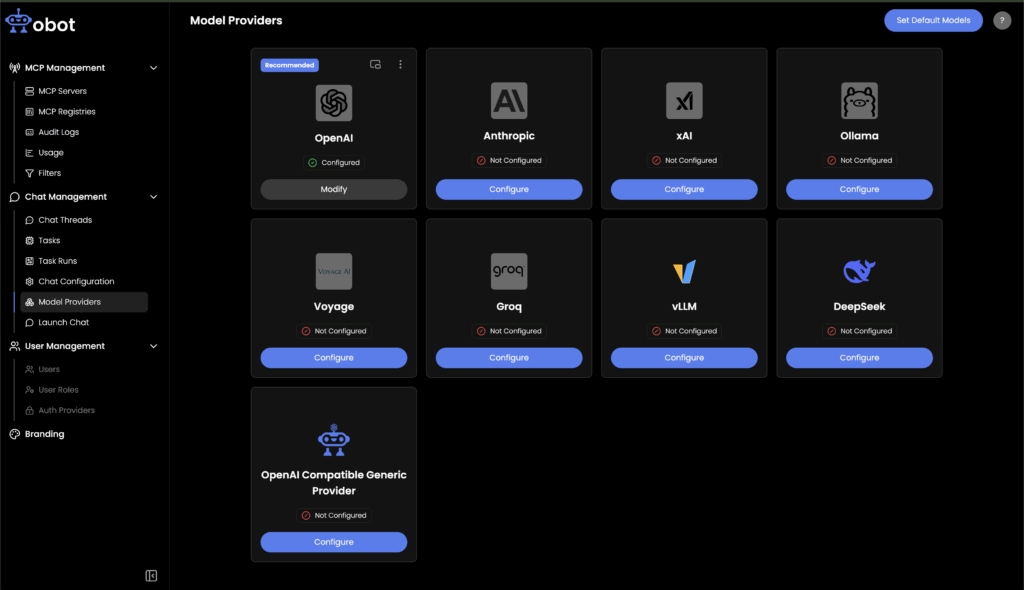
Since we now have Obot running on our computer, we can open up “http://localhost:8080” in a browser. You should then see something like this:
Here, you can see that I have configured OpenAi. You can use other models if you want to do that.
Connecting to MCP Servers
Now it’s time to connect to an MCP server. Obot comes with a long list of popular MCPs. In this tutorial, I’m going to focus on Notion. You can use a different one if you want to do that.
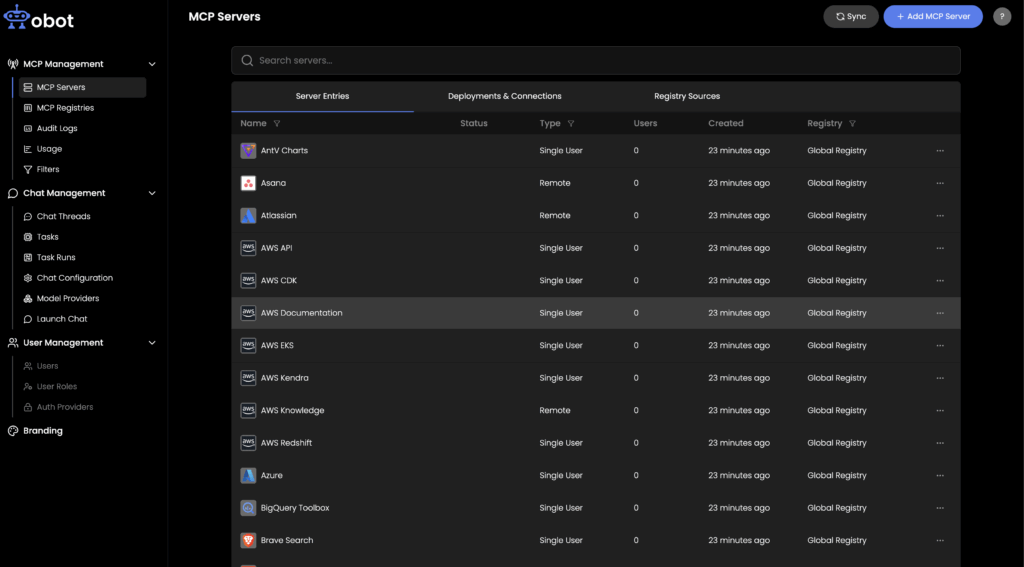
In the sidebar on the left side of the screen, click “MCP Servers” inside MCP Management. This will open up a page with a list of the available MCP servers:
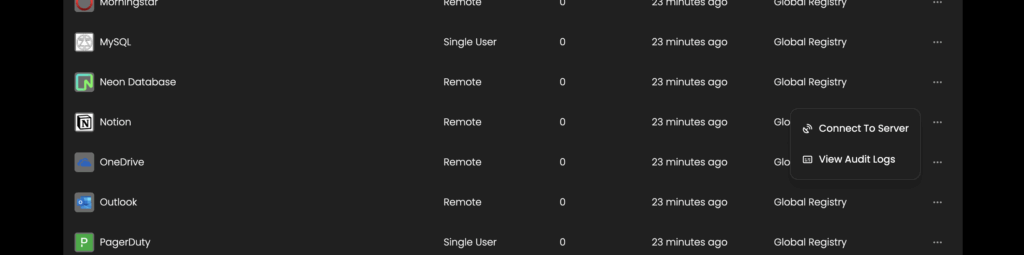
Next, we can scroll down and look for “Notion”. When you’ve located this, click the three “dots” on the right side of the screen:
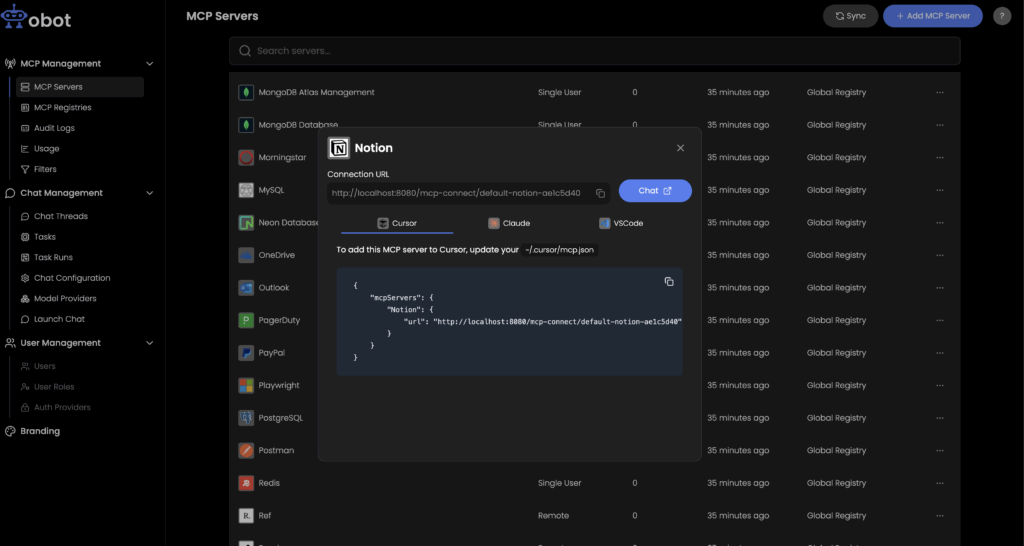
This can take a little while, but as soon as it’s finished, you will see a little code snippet like this:
Select the IDE you’re using, and copy the code snippet and save it for later. If you don’t use any of these IDEs, you can still use Obot Chat by clicking the blue button “Chat”, and chat directly with the MCP server in your browser.
If you’re new to the world of MCPs, the terminology can feel a bit overwhelming at first. That’s totally normal. Once you start working with the technology, things will quickly become much clearer.
By default, all users have access to the MCP servers uploaded to your Obot instance. In larger organizations, this usually makes sense for commonly used services like Google Calendar or CRM systems. More sensitive or infrastructure-level systems—such as DigitalOcean, AWS, or Supabase—are typically restricted to developers or specific teams.
As a developer, I have used a lot of different editors or IDEs. I usually go with Visual Studio Code, or Cursor these days.
We should now have Obot running on our computer, and an MCP server (Notion, in this example) mounted. The next step then will be to set up the connection between Obot and the IDE.
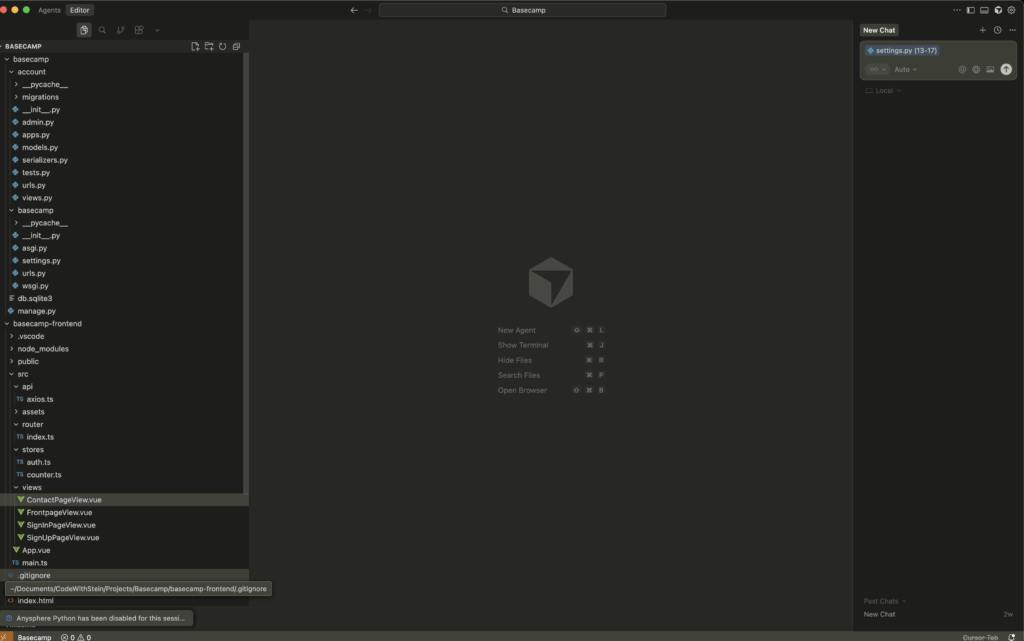
I’m using Cursor right now, and if we send our focus to the right side of the screen, we can see that I have a chat open:
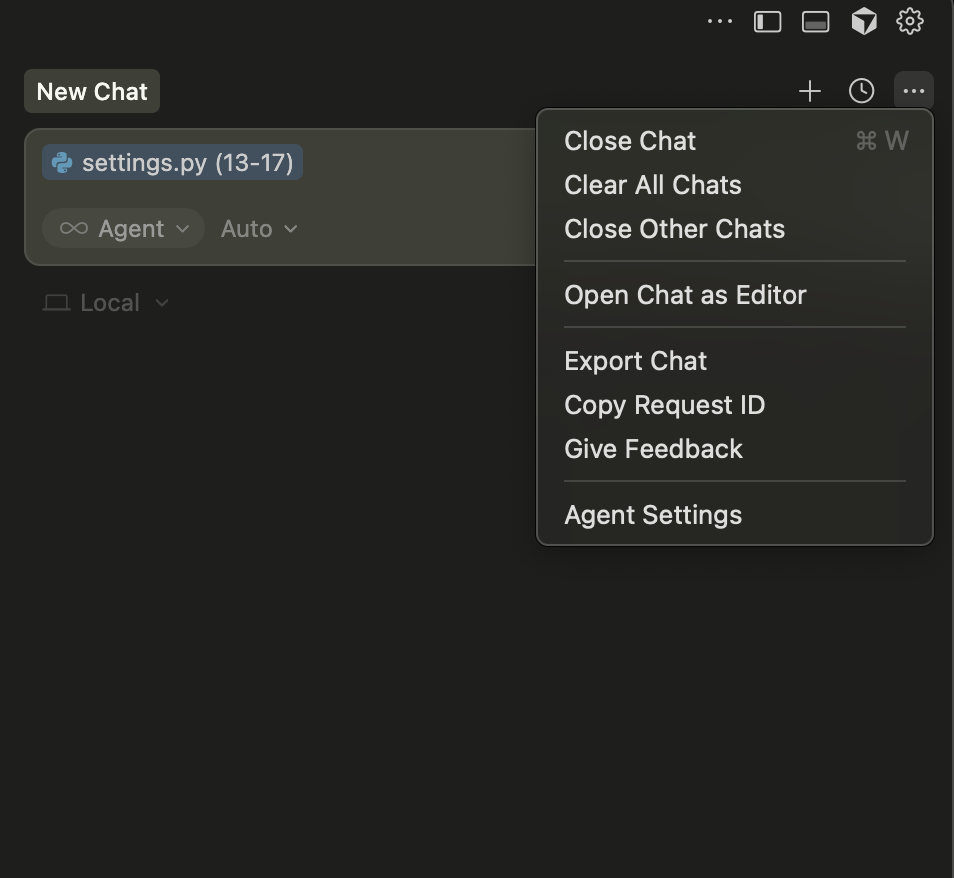
Next, click the three dots to open up this sub menu, and click “Agent settings“:
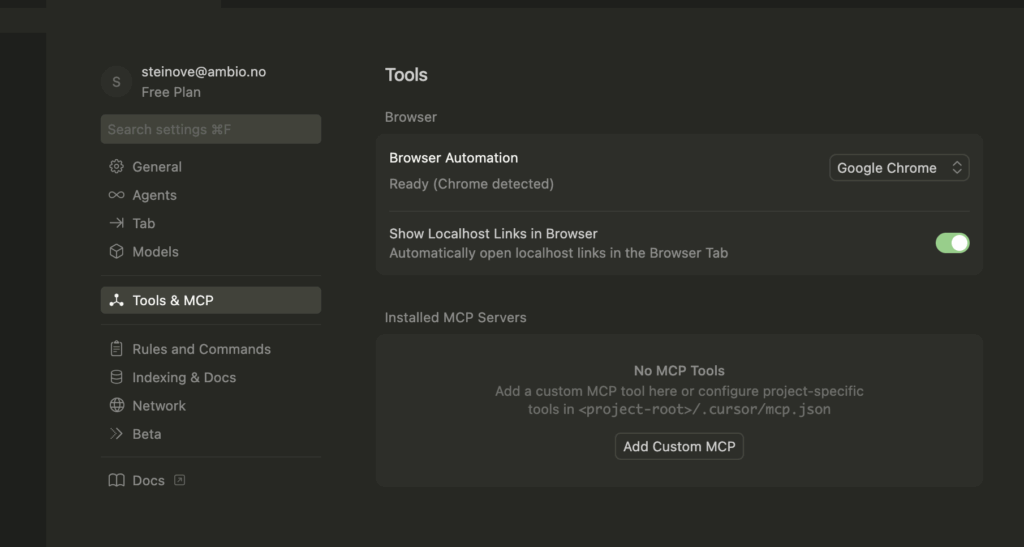
This should open up a new page. We have a new menu where you can locate and click “Tools & MCP“:
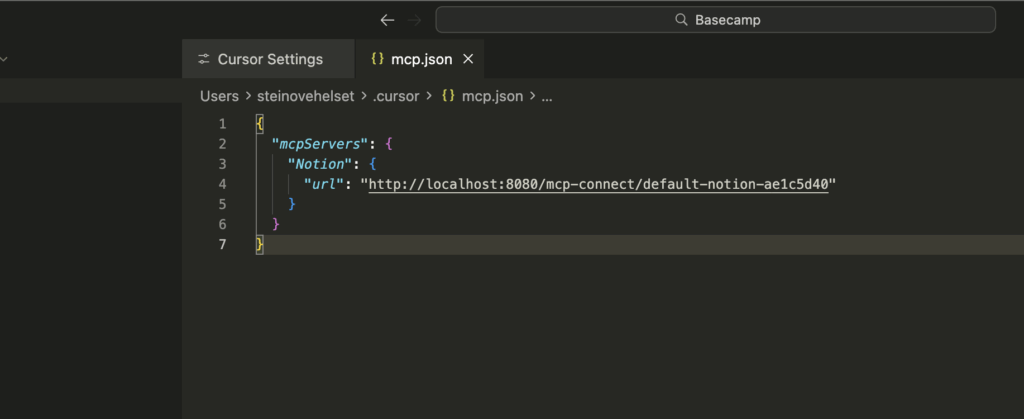
Then we just need to click “Add Custom MCP” to open up a configuration file where we can paste the snippet we copied a little while ago (It should look something like below):
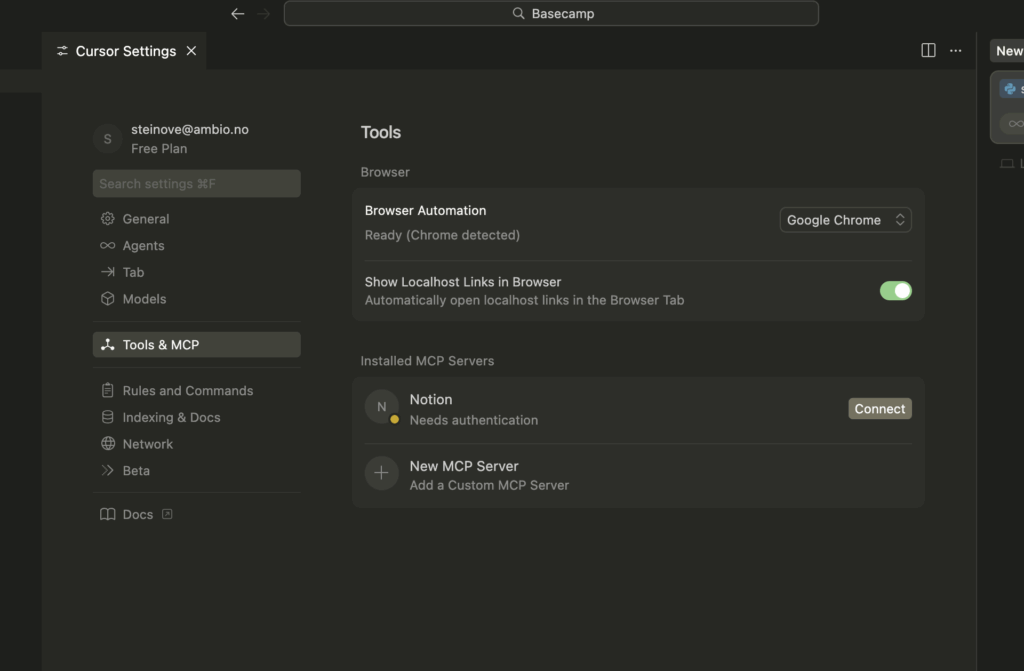
We will now be sent back to “Cursor Settings” where we will now see “Notion” in the list of MCPs:
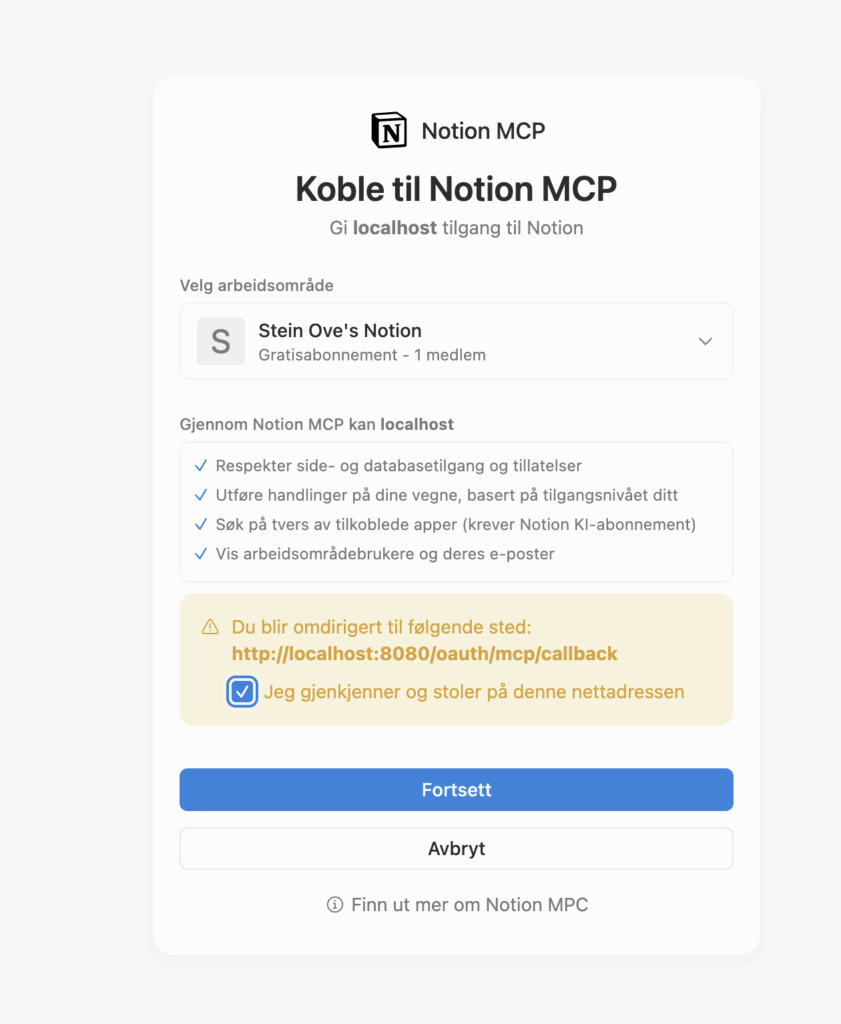
Great, we’re so close to testing this now. Just click “Connect“, and you will be sent to a wizard where you authenticate with your own Notion account:
Sorry about the Norwegian in the screenshot — I promise it’s not a secret feature. It should look very similar to what you see on your screen. Once you click “Continue,” you’ll be taken back to Cursor, and you’re all set to start using Notion in the chat.
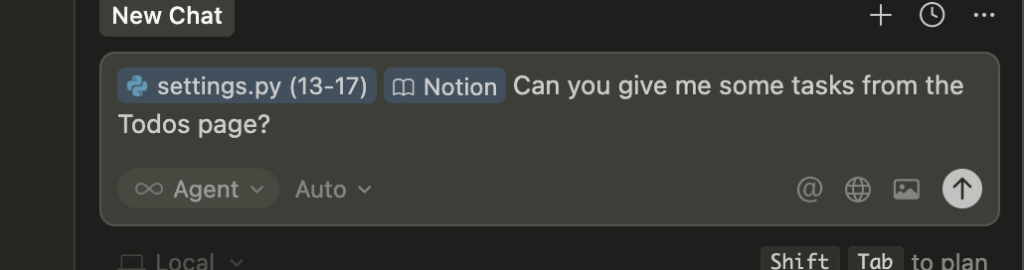
To interact with Notion from the chat, we can things like “@Notion can you get me the todos from X page”, and you will get the results directly in your chat.
Conclusion
MCP gateways represent a shift from managing AI integrations as individual configuration tasks, to treating them as shared infrastructure. Obot AI provides the platform to make MCPs discoverable, manageable, and accessible across your development team or organization, letting you focus on building AI-powered features rather than wrestling with configuration files.