In this article, we’ll cover how to set up a simple MCP server using Python, and host it in the Obot gateway.
The MCP server won’t be the most advanced piece of software, but it will have a couple of tools, and it will be more enough to understand how to set up the MCP and connect to it inside Obot.
Building the MCP server
For the MCP server, we’re going to be using Python. So this is something you need to have installed on your computer.
If you’re not familiar with Python, you should still be able to follow along as it will not be a lot of Python coding.
The first thing I want to do is to create a virtual environment on my computer where we can install some Python packages. Begin by creating a folder (I called mine “py-mcp-test”), and go into this folder in your terminal.
Once you’re inside it, you can run this command to create an environment called “env”:
python3 -m venv env
Next, we need to activate this environment:
source env/bin/activate
Once this is activated, we can install the first package we need by running this command:
pip install mcp
This will install a package called “mcp”, and a whole bunch of dependencies that this have.
Inside the py-mcp-server folder, we can create a new folder called py_mcp_test, and a file called server.py inside there again. And inside this file is where the magic happens. The content for server.py should look like this:
import os from mcp.server.fastmcp import FastMCP # Read user-provided credentials from environment variables # (configured by the user when enabling the server in Obot) API_KEY = os.environ.get("MY_API_KEY") mcp = FastMCP("my-simple-server") @mcp.tool() def add(a: int, b: int) -> int: """Add two numbers together.""" return a + b @mcp.tool() def greet(name: str) -> str: """Return a friendly greeting for the given name.""" return f"Hello, {name}! Nice to meet you." @mcp.tool() def word_count(text: str) -> dict: """Count the number of words and characters in a text.""" words = text.split() return { "word_count": len(words), "char_count": len(text), "char_count_no_spaces": len(text.replace(" ", "")), } @mcp.tool() def check_auth() -> str: """Check whether the API key has been configured.""" if not API_KEY: return "No API key configured. Please set MY_API_KEY in your Obot server settings." return f"API key is set (starts with: {API_KEY[:4]}...)" def main(): mcp.run() if __name__ == "__main__": main()
As you can see here, we have created a few tools add, greet, and word_count. This is just very basic Python so that we have something to test with. This is where you ideally would connect to an API for example, and return the data back to the MCP client.
I also added a simple check for a dummy API key, just so that we learn how to add arguments inside Obot as well.
If we wanted to, we could run this Python project and connect directly to it using Claude Desktop, VSCode, etc. But the whole point of this tutorial is to do this through a MCP Gateway.
Try Obot Today
⬇️ Download the Obot open-source gateway on GitHub and begin integrating your systems with a secure, extensible MCP foundation.
Packaging the MCP server
There are a few ways to different ways to proceed now. You can upload your project to Pypi, you can use GitHub, you can host it on a server, etc.
We’re going to package the “app” we just built, and then upload it to Pypi. This is actually much easier than it sounds.
In the same folder as the env folder and py_mcp_server, create a new file called pyproject.toml. The content for this file should look like this:
[project] name = "py-mcp-test" version = "0.1.0" description = "A simple MCP server for Obot testing" requires-python = ">=3.11" dependencies = [ "mcp" ] [project.scripts] py-mcp-test = "py_mcp_test.server:main" [build-system] requires = ["hatchling"] build-backend = "hatchling.build"
This is just some configurations for the project. Next step then is to build, and publish this to Pypi. But before you continue, you need to create a free account there if you don’t already have one.
To build and upload, you run these three commands:
And that’s it. The name py-mcp-test is taken now, since that’s what I used for this testing. So you might encounter an error with this name, if so, just try a slightly different one.
Adding the MCP server to Obot
The rest of this tutorial will assume that you have downloaded and set up Obot on your computer.
If you want to learn how to set up and run Obot locally, you can follow my guide here.
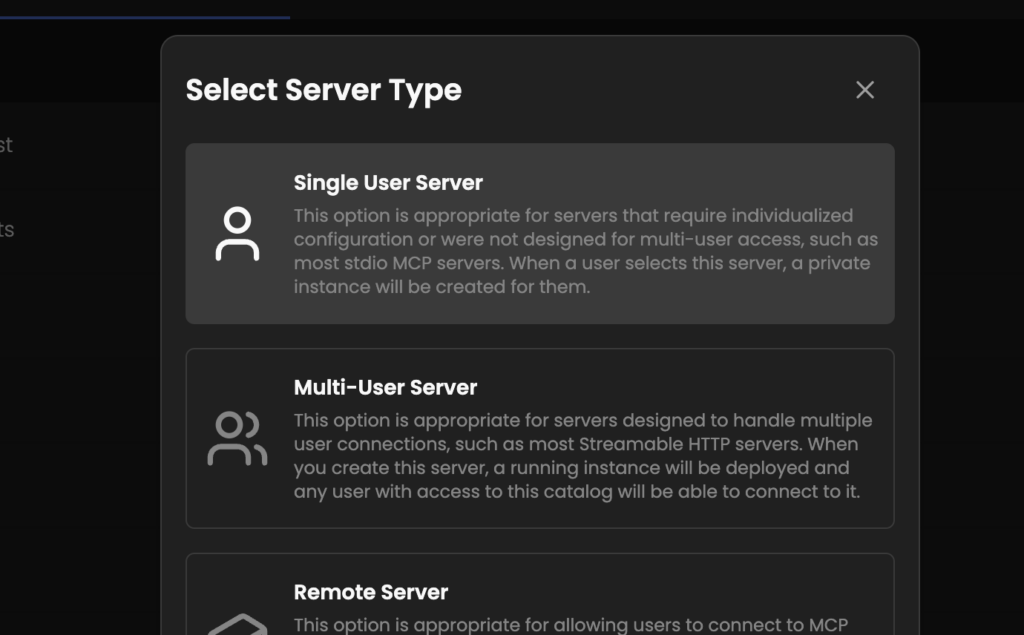
Once you have Obot running, and you have opened up http://localhost:8080/ in your browser, you can click the “+ Add MCP Server” up in the right corner, select “Add Server”, and then “Single User Server”.
This will open up a new window where you need to fill in some information.
Name: This can be whatever you want. I just set mine to “Py MCP Test”. Description: Just a short description of what this MCP does. Runtime: Select “UVX” in the list. UVX is for Python projects. Package: In my case it’s py-mcp-test Command: In my case it’s py-mcp-test
Next, we need to set up the arguments, or user configuration. This is used for the API key.
Click the “+ User Configuration” at the bottom. Set Name and Key to MY_API_KEY. The value will be filled out later when we connect to the server.
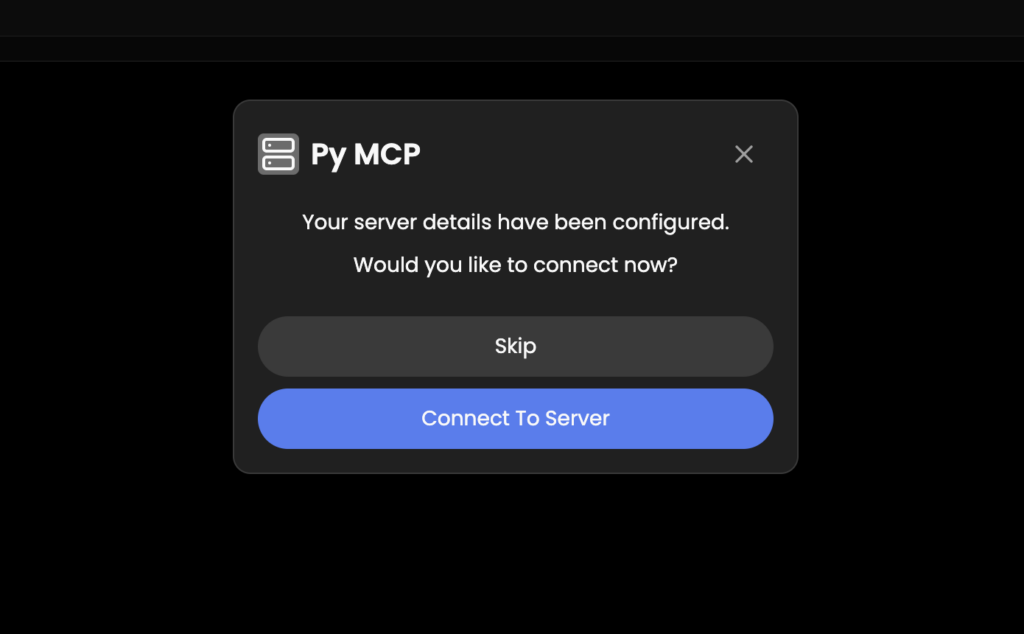
You can now click “Save”, and we should be ready to continue. You will then see a dialog, click “Connect To Server” to continue.
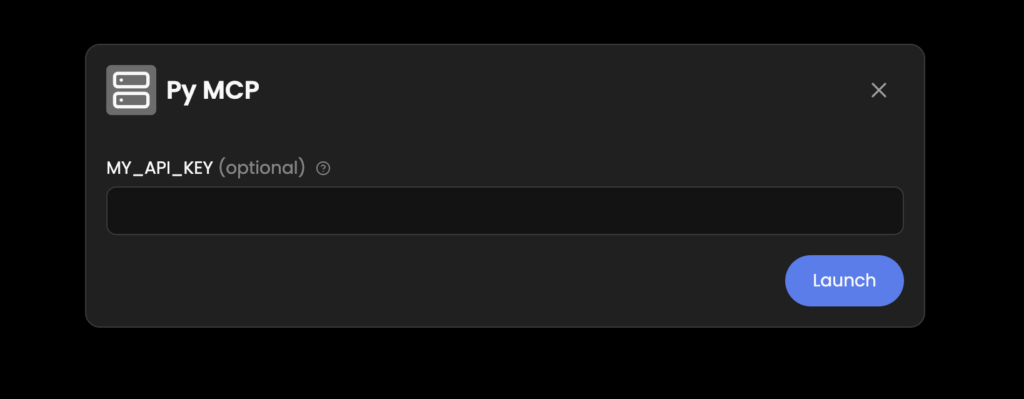
Next, we’ll see the dialog where we can fill out our API key. Since this was just a dummy API key, you can just type some random letters.
And that’s it. We have now set up the MCP server we created on our computer to run in our Obot platform. Next step now is to test it out, and make sure everything is working as expected.
Testing it out
Since we now have everything running, let’s try to connect to the MCP server to see it in action.
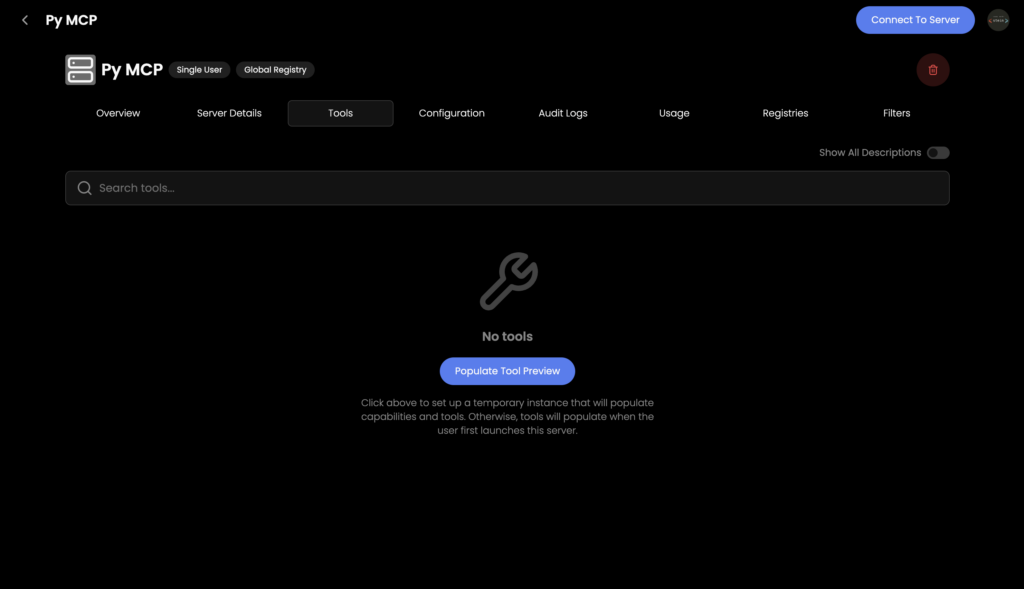
Open up the MCP server in Obot by clicking it, and then go to the “Tools” tab. Here, you should see a button “Populate Tool Preview”. Click that one.
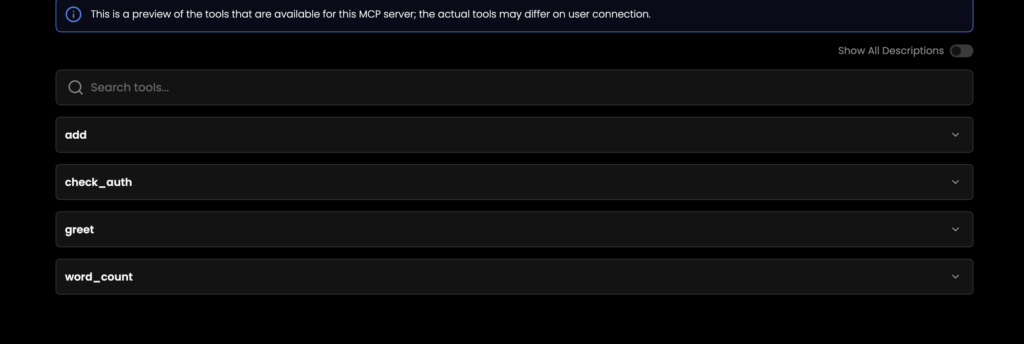
You need to type in an API key again, but just like earlier, just type some random letters and hit “Enter”. When this is done, you should see a list of tools:
And these are the tools that we added in our Python script at the beginning of this tutorial.
Okay, now we know that it’s working. But it will be much more fun to connect to this from a MCP client like VSCode, or Claude.
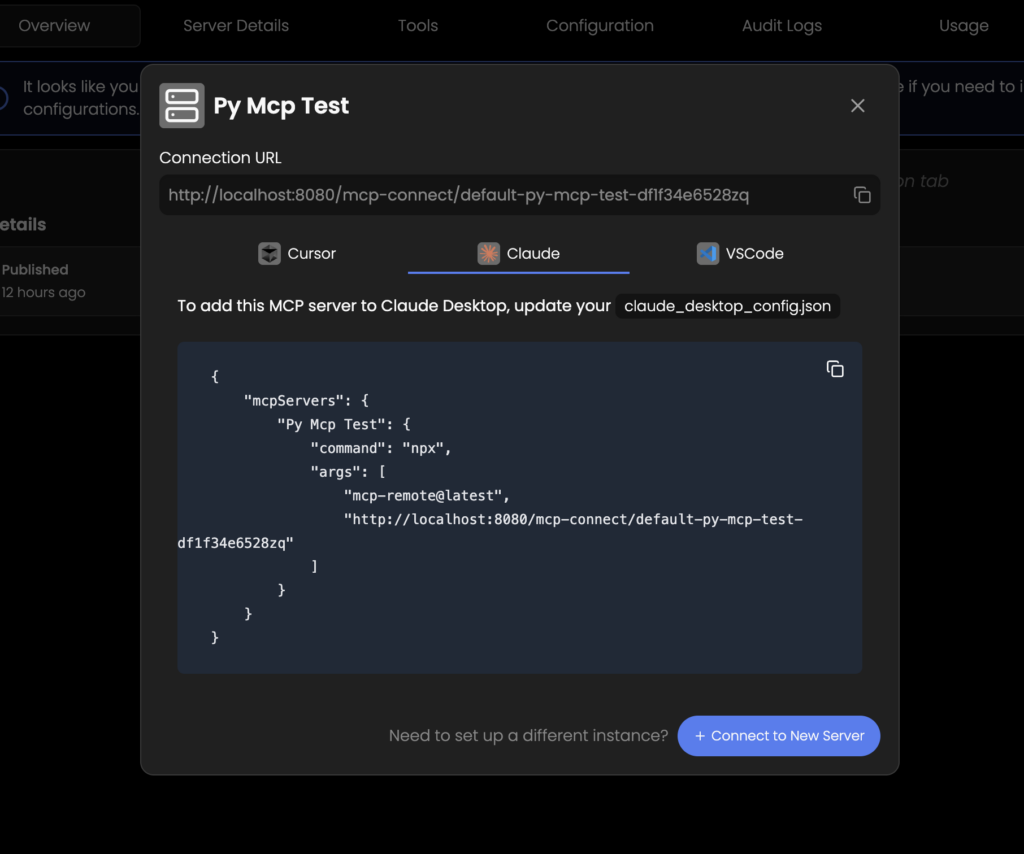
Up in the right corner, click “Connect to server”. A new window will pop up:
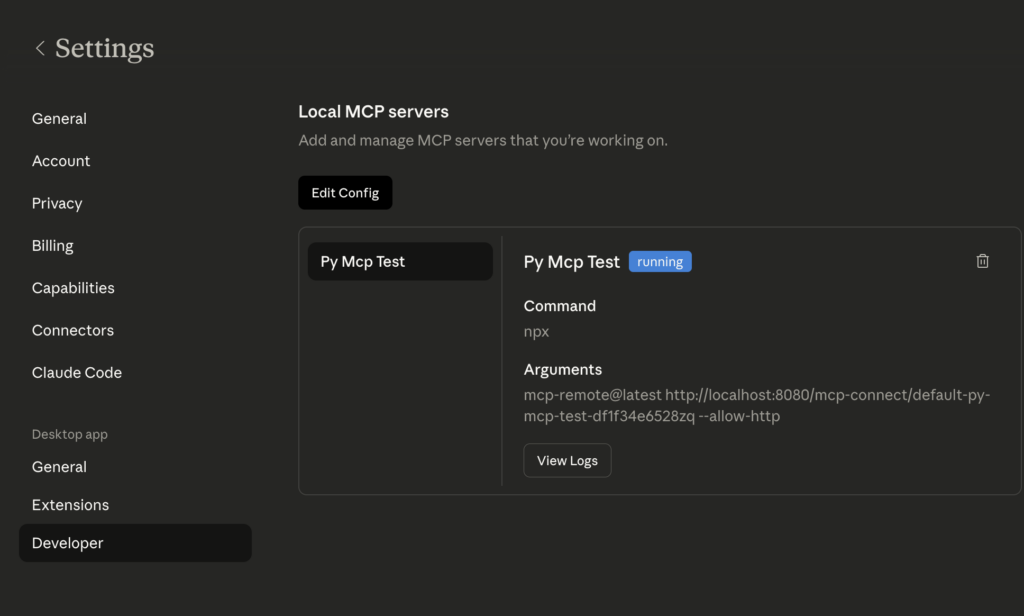
I have selected “Claude”, and then copied the code in the window. Next step then is to open up my Claude desktop, and go to the developer settings:
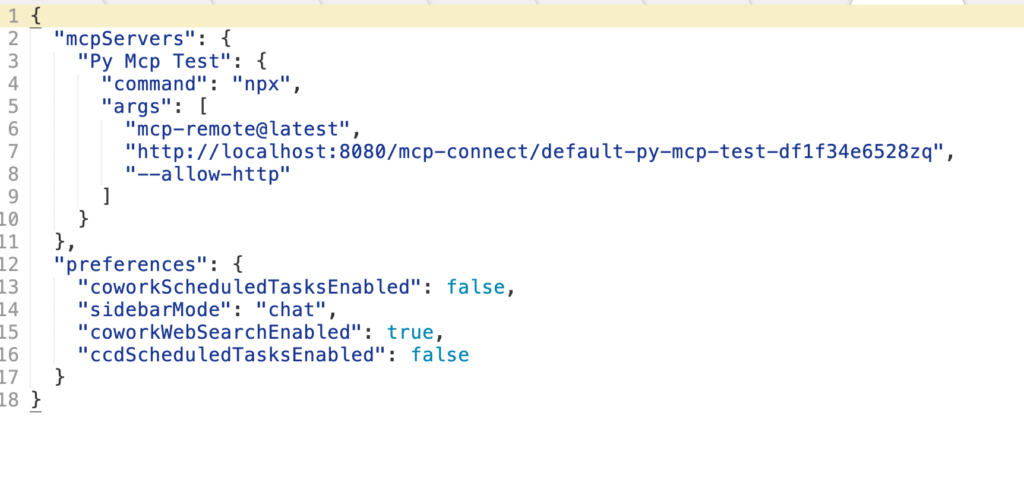
I have already added mine, but click “Edit Config”, and you will get access to a configuration file you need to edit with an editor. Since we’re working on non-https here, we need to add one flag to the configuration --allow-http like this:
You can now save this file, and restart your Claude.
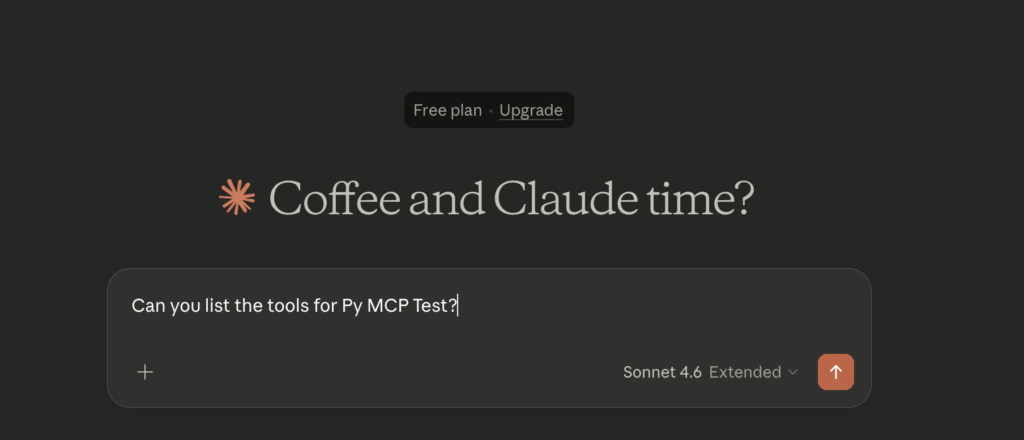
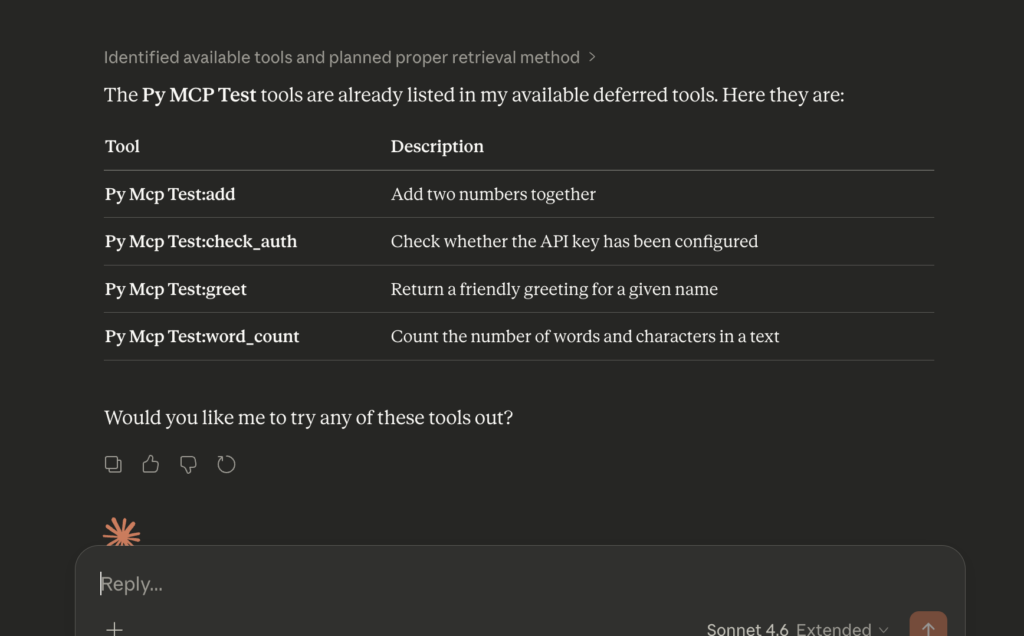
Once Claude has started up again, we can ask Claude to list the tools:
And the results should look similar to this:
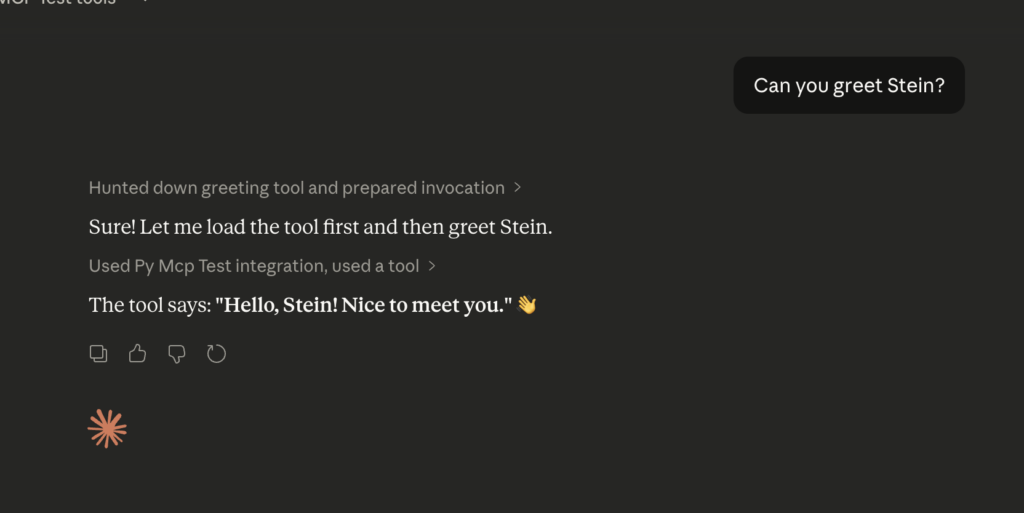
Awesome. Now it’s time to test one of them, let’s test the greeting. You might be asked if Claude is allowed to run the tools, I just select “Yes, Always”.
And there we have it. We now have the greeting from our tool that we have created 🙂.
Summary
I hope that you enjoyed following along this tutorial, and that you now have a clearer picture in your head on how to create and host a MCP server.
The MCP server we created was very basic, but there are no limits to what you can build and host.
Feel free to play around, make changes to the server, re-upload it and test it out.