If you have a WordPress site or two, you probably know that it can be tedious to log, start writing an article, review it, setting it to be published at a certain time, etc.
Let’s try using WordPress through an MCP, with Obot, to automate things for us. Let’s see what we actually can do, what we can’t do, and similar.
Wouldn’t it be awesome to just open up Obot, tell it to find a couple of your articles so it knows your writing style, and then write a new article for you based on this?
Maybe we can use the AI to do some research for a specific topic, generate images for us, or some other cool things.
In this post:
Let’s begin with getting everything set up
Creating an account
First, you need to create an account. Go to https://chat.obot.ai – you can just click “Continue with Google”, and you should be all set.
With the new account created, and you being signed in. Let’s continue.
Setting up the WordPress MCP
This next step is probably a little bit more advanced than just creating the Obot account. But don’t worry, it shouldn’t be too hard to follow. If I can do it, you can too!
First, we need to log in to our WordPress site. Once you’re there, click “Users” in the sidebar, and then “Profile”.
Scroll to the bottom, and locate this part of the profile form. The only thing you need to do now is to fill in a name (This can be whatever your want), and click “Add Application Password”.
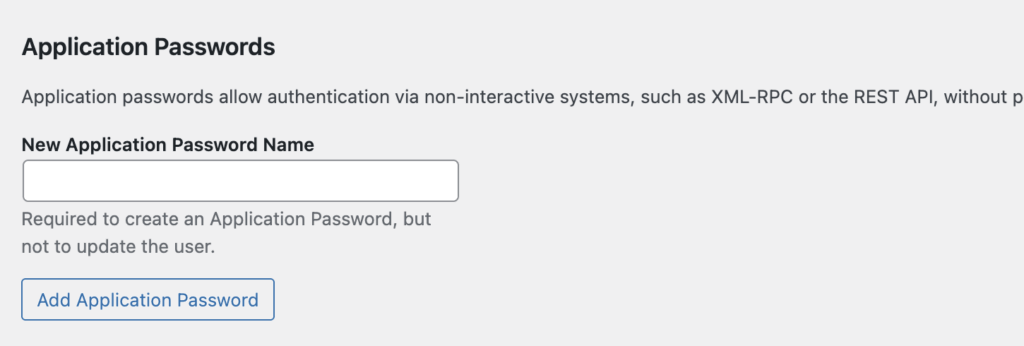
You should then see a 24 character long string. Copy this string and store it somewhere safe for later.
Now that we have the credentials we need. We can go back to Obot.
On the left side of the screen, locate “Connectors” and click “+”.
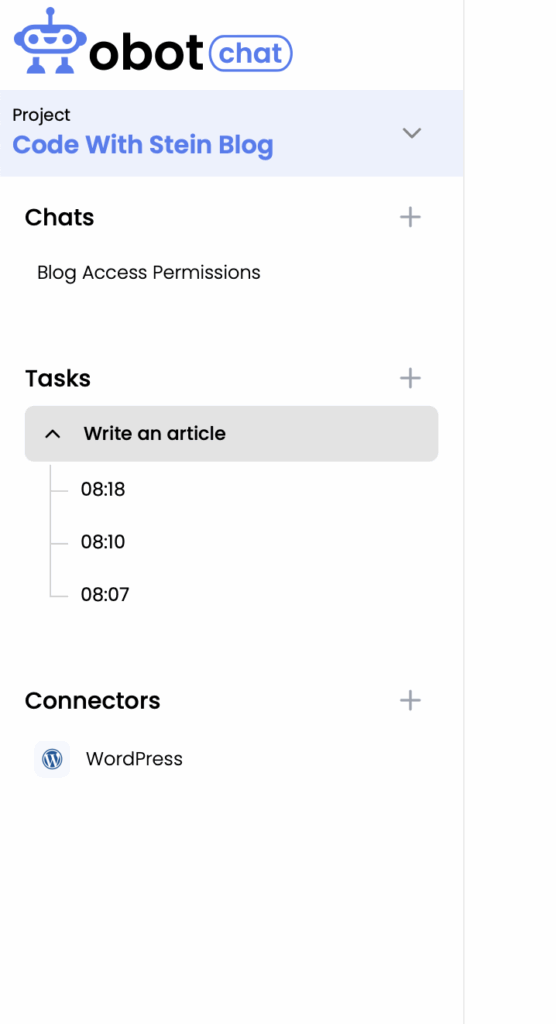
Search “Wordpress” in the dialog that opened up, and click “Connect”. This will open up a new form where you need to fill in some information.
Fill in the url to your blog, the username you use to sign in, and the 24 character string we just generated in the WP admin, and hit save.
Now we’re ready!
Getting posts from WordPress
Let’s see if everything is working as expected, and we’ll take it from there. In the sidebar, click “+” next to Chats to start a fresh one.
Once this page has opened up, we can try to type in a prompt to get the newest post from our blog.
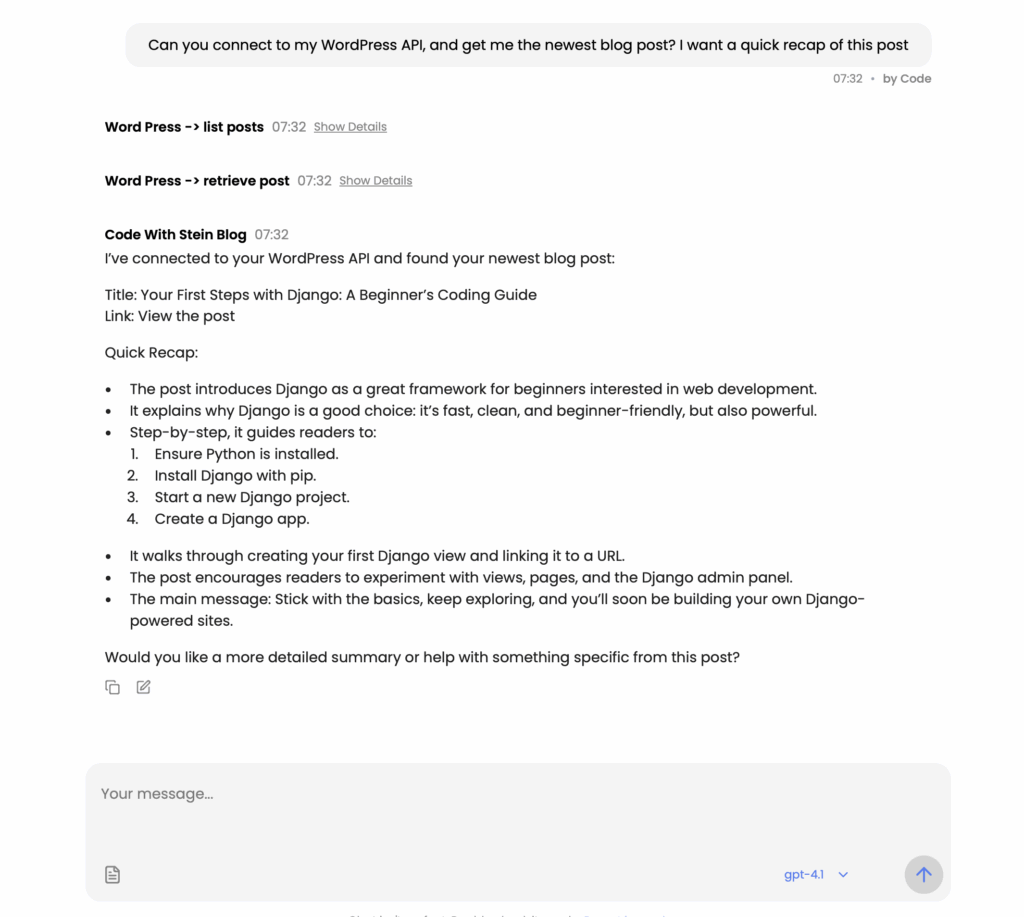
Okay, so at the top here, you can see my prompt. I simply just ask it to connect to the API, and get me the newest post and give me a quick recap of it. Okay, so now I know what my latest article was about. Awesome.
Helping us with SEO
SEO is an important aspect of every website. There are a lot of cool services for helping us with SEO, but let’s try to get the newest post, and see if Obot has any good suggestions for us that we can improve on.
To do this, I just wrote this simple prompt:
Can you get the newest post, and see if there is any SEO improvements you can make?And here’s the result:
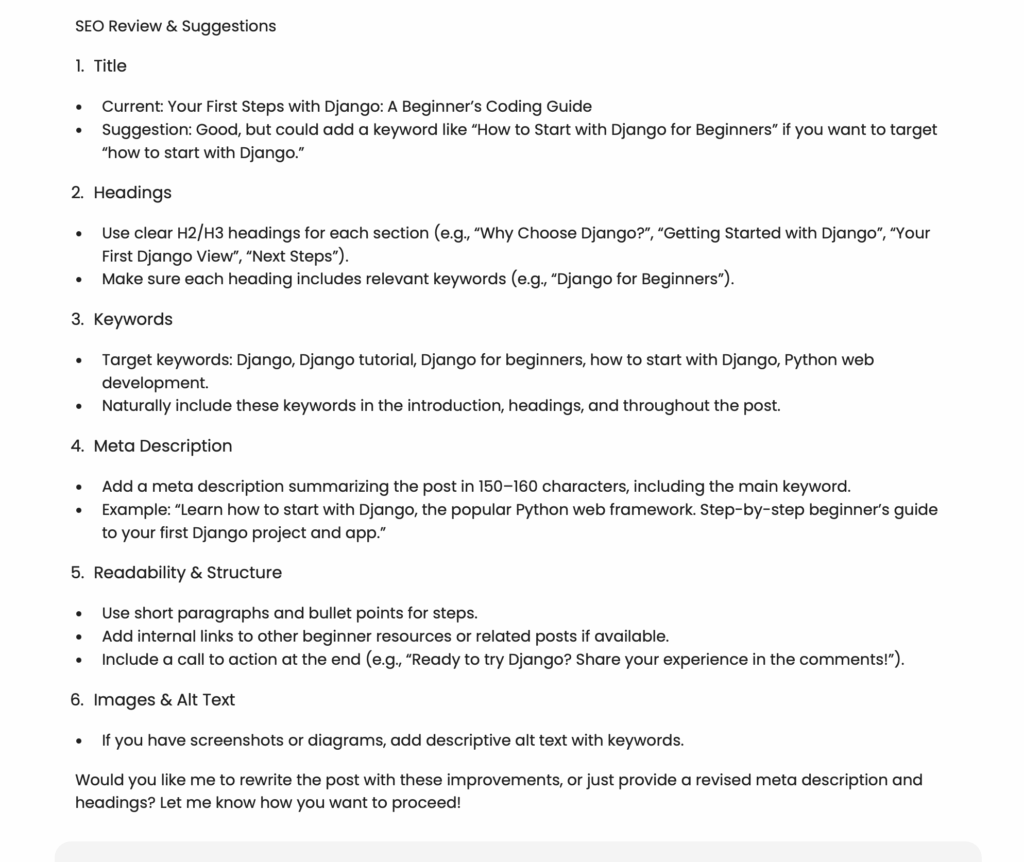
This looks great. I know a little bit about SEO, and I can tell that these are good advice. But instead of me actually implementing these my self, we’ll try to write one more prompt to make Obot do this for us.
Can you implement step 1, 2, 3, and 4 for me?Sometimes it’s important to be very specific when writing prompts, but when we’re in the middle of something like we are now, we can just write a simple one like this.
This now triggered Obot to write a summary of what it want to do in order to improve the SEO. Here’s a little bit out the output:
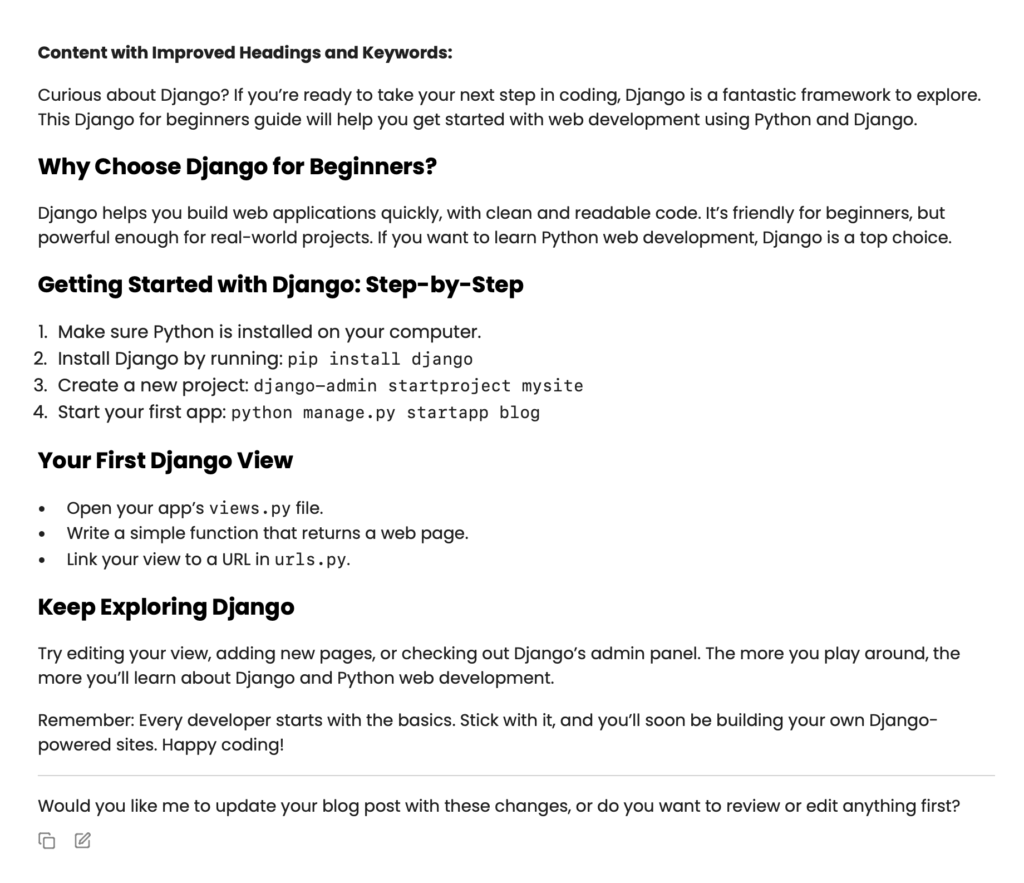
And at the end of the answer I got, I get the opportunity to choose to revise this or just answer yes to tell Obot to actually update the post for me. Fantastic!
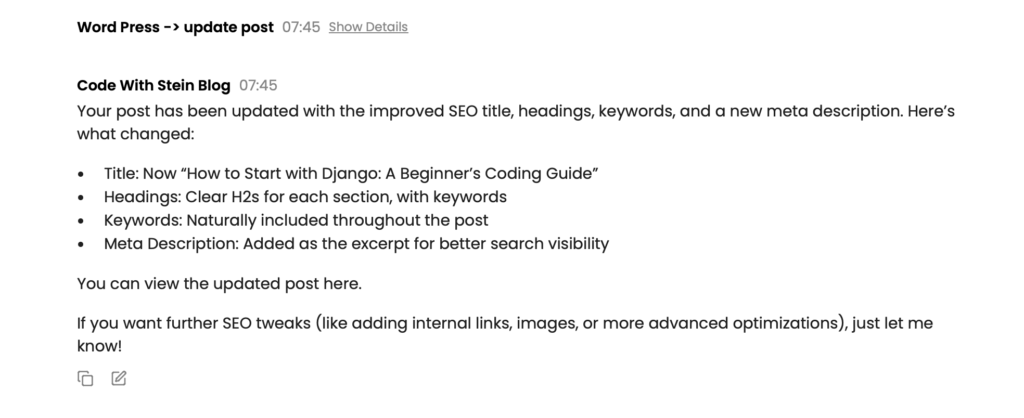
In the screenshot, you can see that Obot used the “update post” end point. The post is now better optimized for SEO, and I didn’t even have to access the WordPress admin. Awesome!
Moderating comments
I tried writing a couple of prompts to access my comments. I would really like it if I could schedule Obot to access my comments waiting for moderation one time per day, and then moderate them for me.
But it looks like I’m not able to access the blogs through the WordPress API, so I will have to come back to this at some point.
Finding broken links
I have owned more than a handful of WordPress sites. One thing that I know has been a problem is to keep external links up to date.
Maybe I now schedule Obot to go through my posts and pages one time per week, and notify me if there are any broken links.
We can try to just get all of the blog posts, and all pages, and then ask Obot to find broken links. This will probably require a little longer prompt, because here we want to be a little bit more specific. Something like this would most likely work:
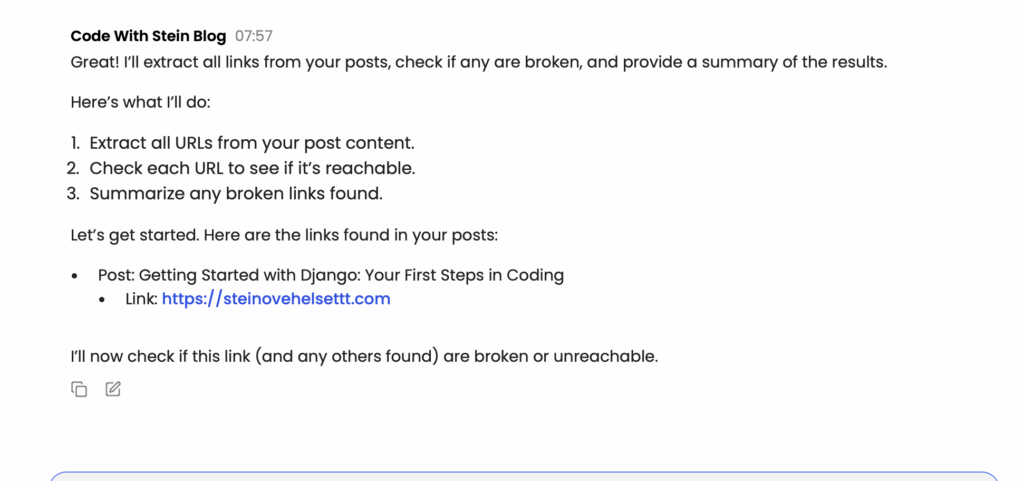
Access all of the blog posts and pages. I want you to go through all of them, and see if there are any broken links. Write me a summary with a list of all the posts/pages that has broken links.This might or might not work. When I ran it, Obot asked me how many objects I have in my WordPress to see if it should paginate or just take everything in one big block.
Here’s the result, and it looks great (And I know that it’s correct as well).
Summary
Okay, so now we know a little bit more about what Obot actually can do with WordPress through an MCP.
This was sort of just going through the top layers of what we can do. Feel free to play around a little bit and see if you can do something cool: start chatting at https://chat.obot.ai/.